
Downloading The App
You can download the Olive Tree app from the native App Store on your device or by visiting www.olivetree.com.
Adding Notes & Highlights
This is a quick video that will show you how to take some basic notes and make basic highlights within the app.
We will be taking this concept a bit more in depth with the Topic Chain system.
Setting Up The App
Once the app is on your device, you will need to complete a few steps to get it ready for Topic Chains.
Create an account to sync your notes, highlights, purchases, etc. across all of your devices. (One of the reasons I love Olive Tree so much is that all of my notes, highlights, purchases, sync across my iPhone, iPad, MacBook, and PC.)
Once you create an account and sign in, pick a translation to use (I prefer the ESV and NKJV) and start playing with the app. Now is the time to learn how it works, how to navigate around in it. Some things to do to learn how the app works would be:
- Navigate to your favorite verse and highlight it.
- Make a note on that verse explaining why it is your favorite verse.
- Play with the Study Center by clicking the green bar at the bottom of the screen.
- Setup a reading plan.
I highly recommend adjusting the verse picker:
- Click on the green bar at the top of the screen on the passage next to “Select Verse.”
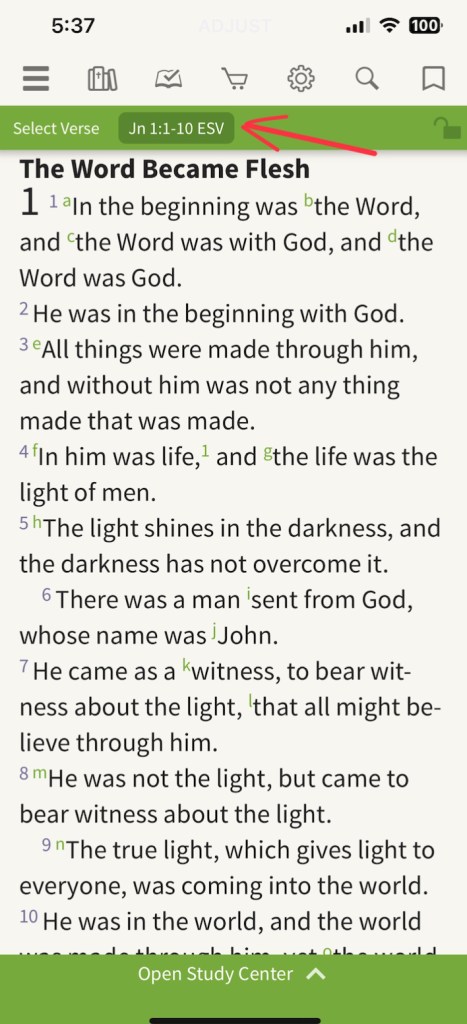
- Click on the 3 dots in the top right of the screen.

- Click “Enable Shading” and “Use Compact Grid Layout”
- The finished result should look like this:

Preparing the App for Topic Chains
First, we will create an underline “highlighter” for Topic Chains. (This will help show the difference between any highlights you make in your bible and which highlights are for Topic Chains.)
- Click the Menu Button in the top left of the screen:
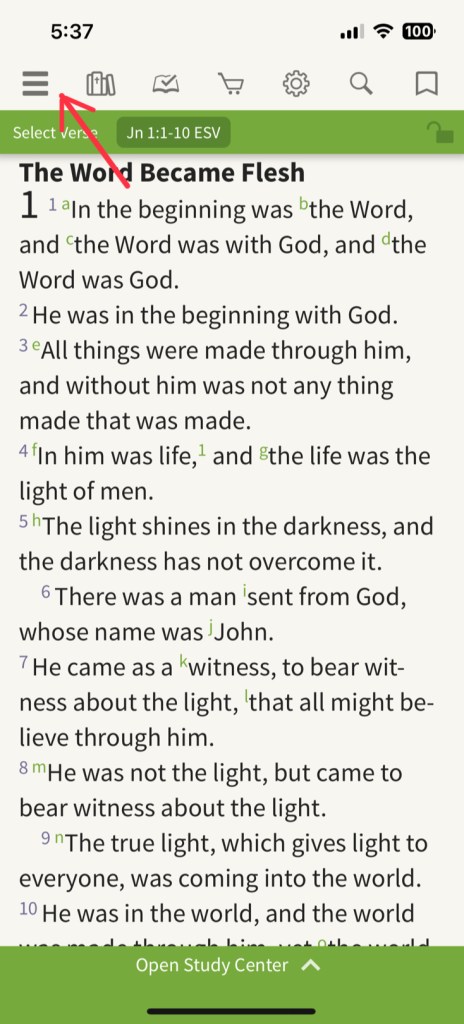
- Select “Highlights”
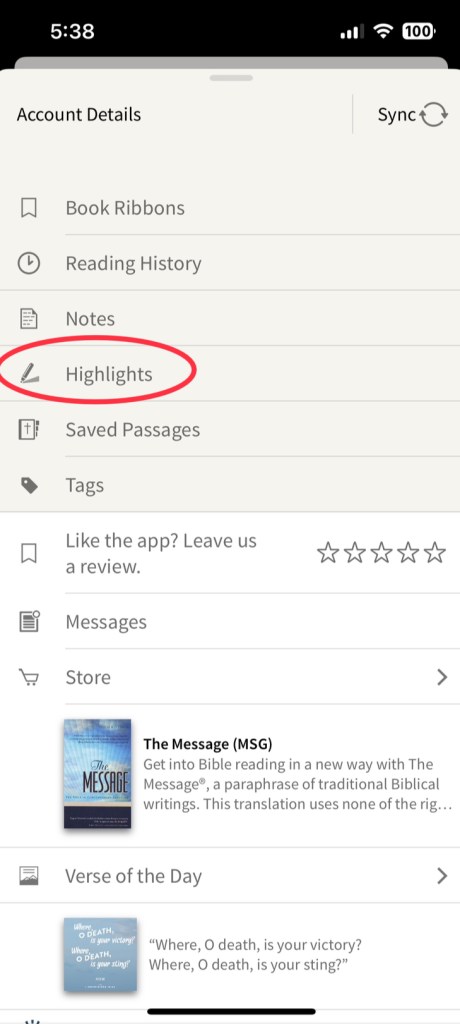
- Click “Edit” in the top right of the screen:

- Click on “Add Highlighter”
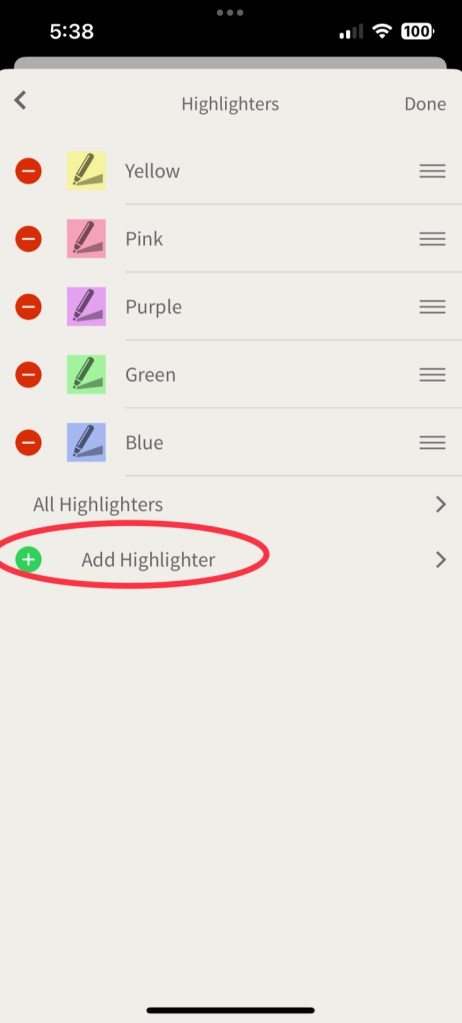
- Label the highlighter “Topic Chains”
- Select “Underline” instead of “Highlight”
- Set the “Intensity” and “Thickness” to about the middle
- Select a color, I prefer gray as it will show up well on both light and dark themes, and it does not distract me while reading scripture on a regular basis.
- The result should look like this:

Next, we will create a “Notes” category for Topic Chains.
- Select “Notes”
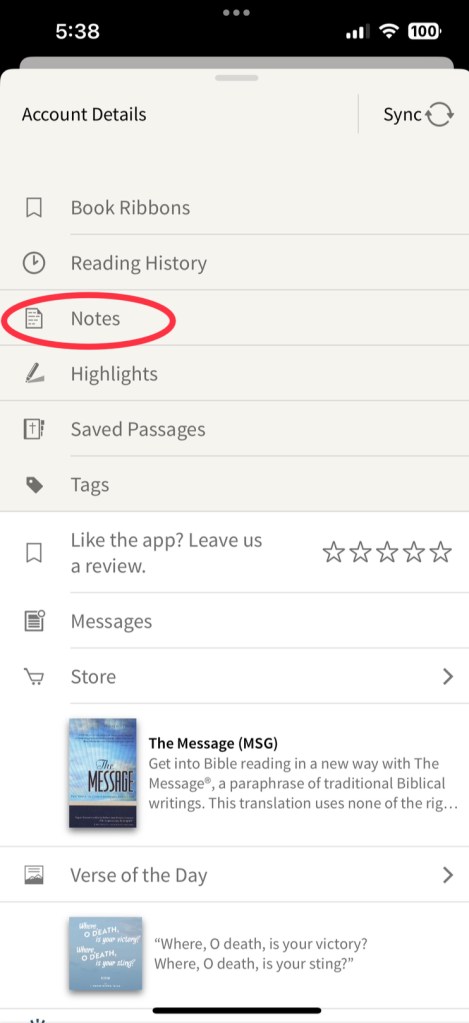
- Click on “Add Category”

- Label the category “Topic Chains”

- Click “Create”
- This will separate Topic Chains from any other notes you may already have, or notes you may create in the future.
- Your app is now ready for the upcoming bible class series!
 RIO VISTA CHURCH OF CHRIST