
Attention!
This tutorial is for adding Chains to your Olive Tree app after you have already setup the notes and highlights for Topic Chains. If you have not done so, please click here to setup the app first.
Adding a New Chain
First, create a starting point in Notes.
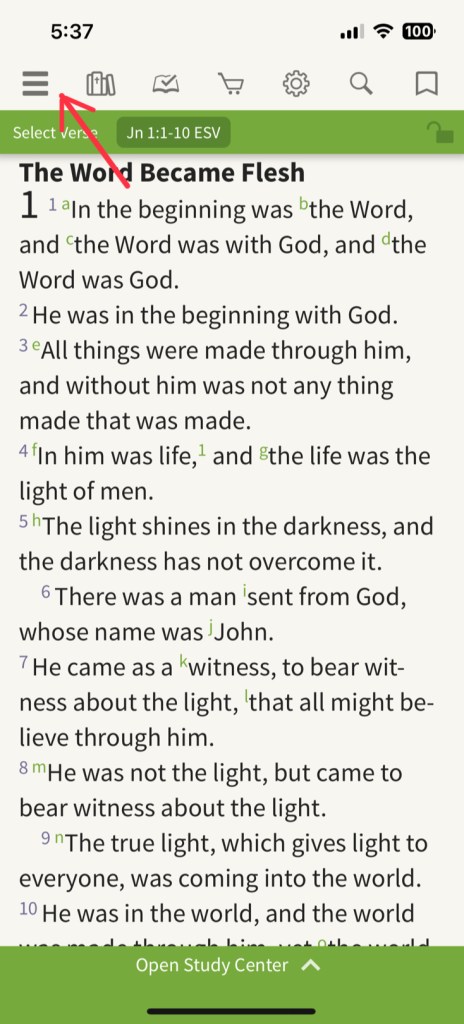
Click on the 3 lines icon in the top left of the screen for the menu.
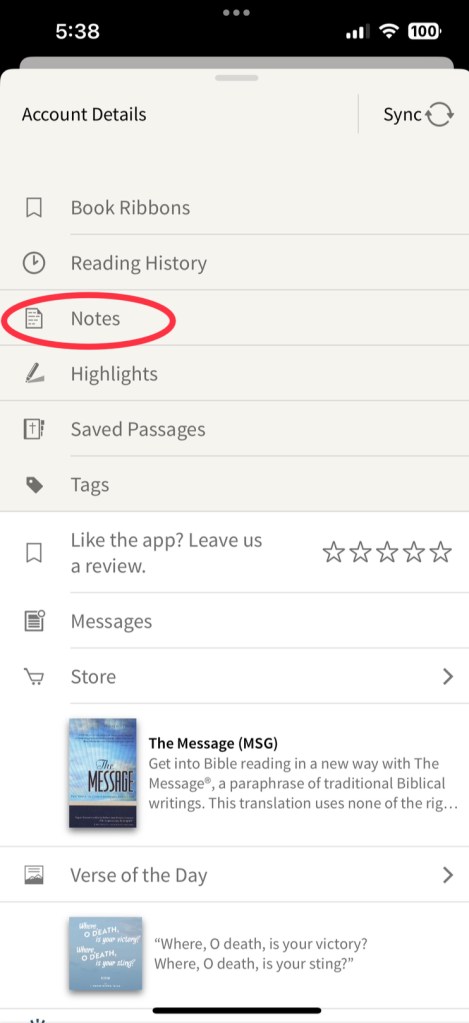
Select “Notes”
Click on the folder called, “Topic Chains”
Click “Add Note”
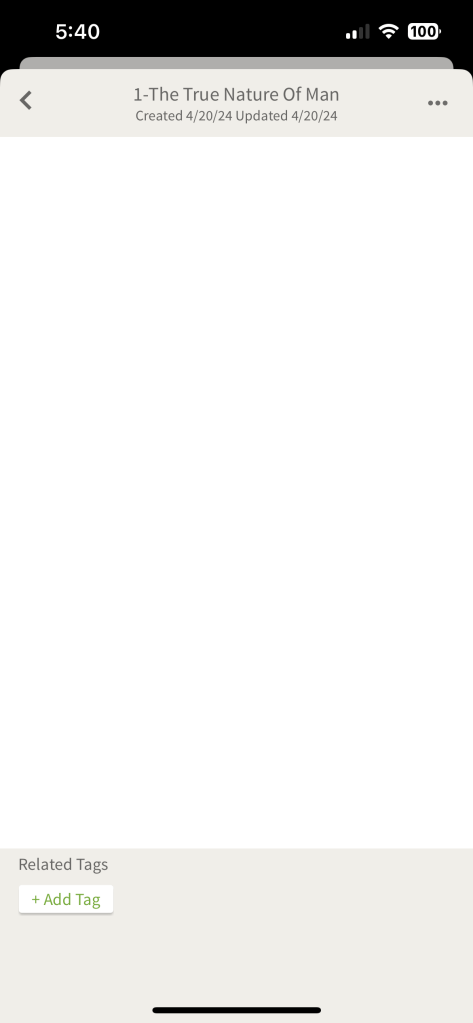
Click on “Note Title” at the top and rename the note to “1 – The True Nature of Man”
Click on the 3 dots in the top right of the screen.
Select “Change Icon”
Select any icon you like, I like to use different icons and colors to differentiate from different topics. In this case, I selected a blue question mark.

In the main body of the note, type “2Co 4:16”
Olive Tree will automatically turn any bible passage into a link that you can click.
It is very forgiving on how you choose to label the books in the Bible.
All 4 of these links will take you to the same passage:
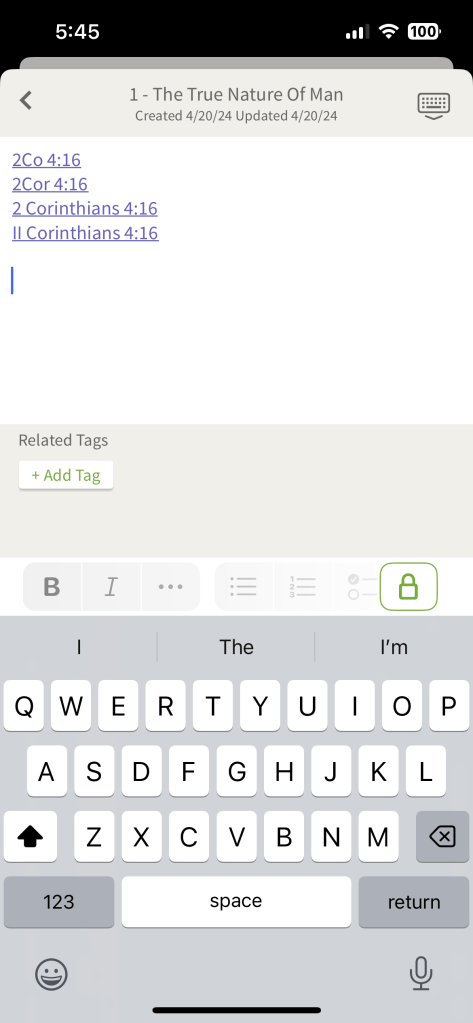
Click the keyboard icon in the top right of the screen to stop editing the note.
This is your starting point for the topic “The True Nature of Man.”
You can add more notes here if you like but the thing to remember is that this is just the starting point, we will create a chain on the passages themselves moving forward.
Next, we will add another link to the chain.
Click on the passage link you just created.
Click on the arrow in the top right of the pop up window.
Select “Open in Main Window”
This will take you to 2Co 4:16
Click on the number 16 at the beginning of the verse, and a pop up window will appear.
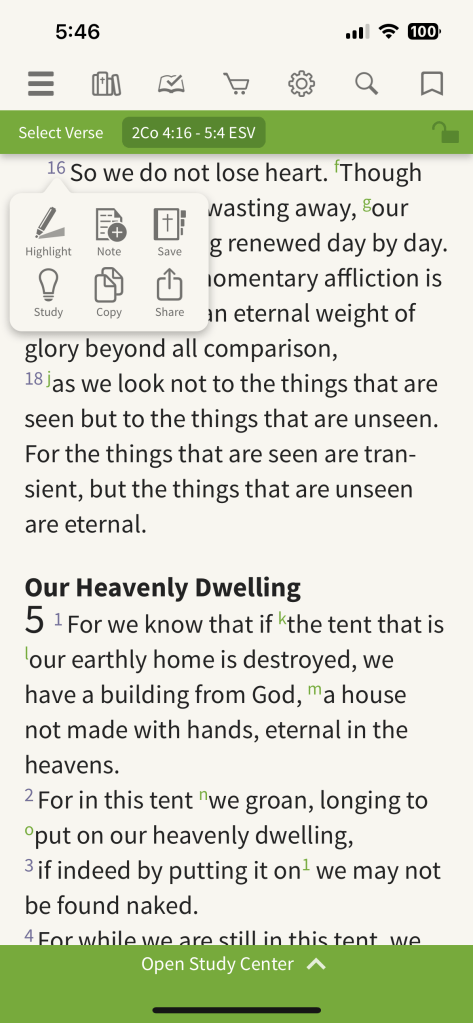
Click the “Highlight” icon.
Click the gray “Topic Chains” icon on the second row.

Click on the number 16 at the beginning of the verse, and a pop up window will appear.
Click on the “Note” icon.
Change the icon by clicking on the 3 dots in the top right of the pop up window
Select the same icon you used earlier.
In the body of the note you can write the point that is made at this link in the Chain.

I like to add tags to the note so when I come across the passage again later I know what the note is referring to.
It also helps you stay on the same topic when chains overlap into the same passages.
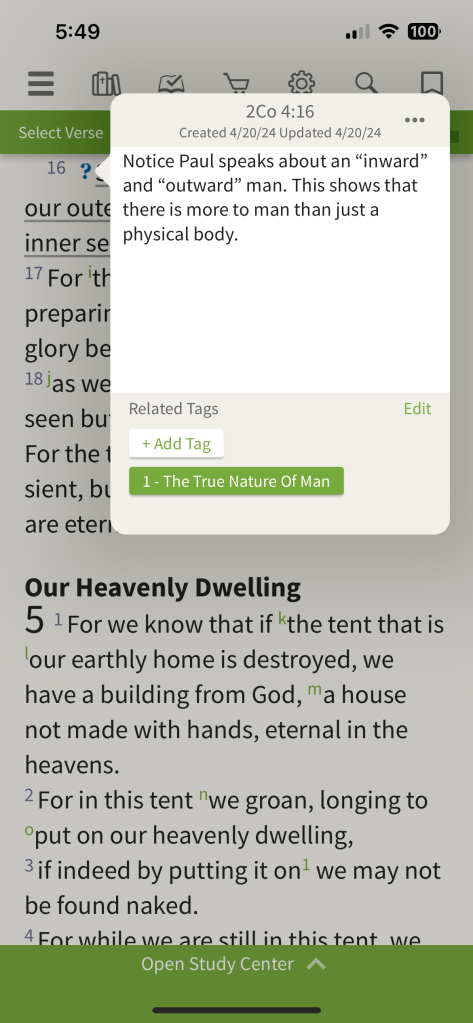
At the end of your note, leave a space and type the next passage in the chain.

Continue the same steps for each of the links in the chain.
 RIO VISTA CHURCH OF CHRIST